BASIC LINUX
OPERATION
What is
UNIX?
UNIX
is an operating system which was first developed in the 1960s, and has been
under constant development ever since. By operating system, we mean the suite
of programs which make the computer work. It is a stable, multi-user,
multi-tasking system for servers, desktops and laptops.
UNIX systems also have a graphical user interface (GUI) similar
to Microsoft Windows which provides an easy to use environment. However,
knowledge of UNIX is required for operations which aren't covered by a
graphical program, or for when there is no windows interface available, for
example, in a telnet session.
Types of
UNIX
There
are many different versions of UNIX, although they share common similarities.
The most popular varieties of UNIX are Sun Solaris, GNU/Linux, and MacOS X.
Here in the School, we use Solaris on our servers and
workstations, and Fedora Linux on the servers and desktop PCs.
The UNIX
operating system
The kernel
The kernel of UNIX is the hub of the operating system: it allocates time and memory to programs and handles the filestore and communications in response to system calls.
As an illustration of the way that the shell and the kernel work together, suppose a user types rm myfile (which has the effect of removing the filemyfile). The shell searches the filestore for the file containing the program rm, and then requests the kernel, through system calls, to execute the program rm on myfile. When the process rm myfile has finished running, the shell then returns the UNIX prompt % to the user, indicating that it is waiting for further commands.
The shell
The shell acts as an interface between the user and the kernel. When a user logs in, the login program checks the username and password, and then starts another program called the shell. The shell is a command line interpreter (CLI). It interprets the commands the user types in and arranges for them to be carried out. The commands are themselves programs: when they terminate, the shell gives the user another prompt (% on our systems).
The adept user can customise his/her own shell, and users can use different shells on the same machine. Staff and students in the school have thetcsh shell by default.
The tcsh shell has certain features to help the user inputting commands.
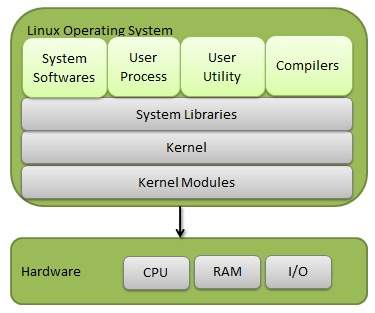
Components of Linux System
Linux Operating System has primarily three components
Kernel − Kernel is the core part of Linux. It is responsible for all major activities of this operating system. It consists of various modules and it interacts directly with the underlying hardware. Kernel provides the required abstraction to hide low level hardware details to system or application programs.
System Library − System libraries are special functions or programs using which application programs or system utilities accesses Kernel's features. These libraries implement most of the functionality of the operating system and do not requires kernel module's code access rights.
System Utility − System Utility programs are responsible to do specialized, individual level tasks.
SOME
COMMAND USED IN LINUS OPERATION
At the end of the list, some vital
information you need to use the Linux CLI.
1. ls
The ls command - the list command - functions
in the Linux terminal to show all of the major directories
filed under a given file system. For example, the command:
ls /applications
...will show the user all of the folders
stored in the overall applications folder.
The
ls command is used for viewing files, folders and directories.
2. cd
The cd command - change directory - will
allow the user to change between file directories. As the name command name
suggest, you would use the cd command to circulate between two different
directories. For example, if you wanted to change from the home directory to
the Arora directory, you would input the following command:
cd/arora/applications
As you might have noted, the path name listed
lists in reverse order. Logically cd/arora/applications reads change to the arora directory
which is stored in the applications directory. All Linux commands follow a
logical path.
3. mv
The mv command - move - allows a user to move
a file to another folder or directory. Just like dragging a file located on a
PC desktop to a folder stored within the "Documents" folder, the mv
command functions in the same manner. An example of the mv command is:
mv/arora/applications/majorapps
/arora/applications/minorapps
4. man
The man command - the manual command - is
used to show the manual of the inputted command. Just like a film on the nature
of film, the man command is the meta command of the Linux CLI. Inputting the man command will
show you all information about the command you are using. An example
man cd
The inputting command will show the manual or
all relevant information for the change directory command.
5. mkdir
The mkdir - make directory - command allows
the user to make a new directory. Just like making a new directory within a PC
or Mac desktop environment, the mkdir command makes new directories in a Linux
environment. An example of the mkdir command
mkdir testdirectory
The example command made the directory
"testdirectory".
6. rmdir
The rmdir - remove directory - command allows
the user to remove an existing command using the Linux CLI. An example of the
rmdir command:
rmdir testdirectory
The example command removed the
directory "testdirectory".
It should be noted: both the mkdir
and rmdir commands make and remove directories. They do not make files and they
will also not remove a directory which has files in it. The mkdir will make an
empty directory and the rmdir command will remove an empty directory.
8. rm
The rm command - remove - like the rmdir
command is meant to remove files from your Linux OS. Whereas the rmdir command
will remove directories and files held within, the rm command will delete
created files. An example of the rm command:
rm testfile.txt
The aforementioned command removed
testfile.txt. Interestingly, whereas the rmdir command will only delete an
empty directory, the rm command will remove both files and directories with
files in it. This said, the rm command carries more weight than the rmdir
command and should be used with more specificity.
Basic Features
Following are some of the important features of Linux Operating System.
- Portable − Portability means software can works on different types of hardware in same way. Linux kernel and application programs supports their installation on any kind of hardware platform.
- Open Source − Linux source code is freely available and it is community based development project. Multiple teams work in collaboration to enhance the capability of Linux operating system and it is continuously evolving.
- Multi-User − Linux is a multiuser system means multiple users can access system resources like memory/ ram/ application programs at same time.
- Multiprogramming − Linux is a multiprogramming system means multiple applications can run at same time.
- Hierarchical File System − Linux provides a standard file structure in which system files/ user files are arranged.
- Shell − Linux provides a special interpreter program which can be used to execute commands of the operating system. It can be used to do various types of operations, call application programs. etc.
- Security − Linux provides user security using authentication features like password protection/ controlled access to specific files/ encryption of data.

No comments:
Post a Comment