Office 2007 introduced a new graphical user interface called the Fluent User Interface, which uses ribbons and an Office menu instead of menu bars and toolbars. Office 2007 also introduced Office Open XML file formats as the default file formats in Excel, PowerPoint, and Word. The new formats are intended to facilitate the sharing of information between programs, improve security, reduce the size of documents, and enable new recovery scenarios.

- Insert your Office 2007 CD into the drive. If the setup wizard doesn’t start automatically, navigate to the CD drive and click SETUP.EXE.NOTE: If you don’t have a CD, you can download and install Office with your product key.
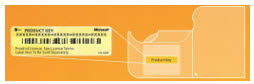
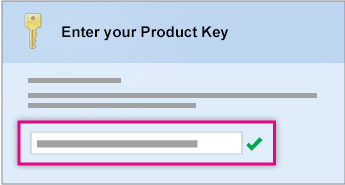
- When prompted, enter the product key.You can find the product key on the sticker on the CD case or other packaging.
- Read and accept the Microsoft Software License Terms, and then click Continue.
- Follow the prompts and after Office installs, click Close.

Activate Office 2007
You’ll need to activate Office to keep your Office programs working fully.To activate from Excel, Word, PowerPoint, and Access:- Click the Microsoft Office Button
 > Options > Activate Microsoft Office.
To activate from all other Office products:- Click Help > Activate Product.
Installing OpenOffice
Below you will find step-by-step instructions to download and install Apache OpenOffice 4.x versions on your system.If you are experienced with the Windows operating system, you can use the instructions provided in belowOverview of the download and installation procedure
To download and install Apache OpenOffice 4.x, follow this checklist:- Review the System Requirements for Apache OpenOffice use.
- Download and install Java JRE if you need the features that are Java dependent.
- Download Apache OpenOffice 4.x.x.
- Login as administrator (if required).
- Unpack and install the downloaded Apache OpenOffice 4.x.x files.
- Upgrading OpenOffice for Windows
- If
the current version is 3.x, you can remove it before you upgrade to
version 4.x, or keep it and install 4.x as an additional version.
In the Installation Wizard, do one of the following:- To remove 3.x and install 4.x, select *Remove all older product versions*. The startup group item, desktop icon, and entry in the Add/Remove Programs list will all refer to 4.x.
- To have both 3.x and 4.x on your computer, deselect *Remove all older product versions*. Each version will have its own startup group item, desktop icon, and entry in the Add/Remove Programs list.
- If the current version is 4.x, but is older than the point version that you want to install (for example, you have 4.0.0 but want to install 4.0.1), the older version will be removed and the later one will be installed. The startup group item, desktop icon, and entry in the Add/Remove Programs list will all refer to the later version.
- If
the current version is 3.x, you can remove it before you upgrade to
version 4.x, or keep it and install 4.x as an additional version.


No comments:
Post a Comment